Welcome to the BleBox first-time setup guide. Below you’ll find step-by-step instructions on how to set up and configure your new device.
Functionality
check
- Once you have connected the power supply to the BleBox, check that the blue LED on it is flashing.
- A flashing blue LED indicates that the device is working correctly and is ready for configuration.
- If the LED is not flashing, check the power connection or contact technical support.
Initial setup
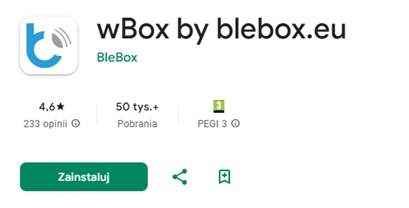
- Download the wBox app
- The app is available free of charge on Google Play (Android) and the App Store (iOS).
Connect the device to the network
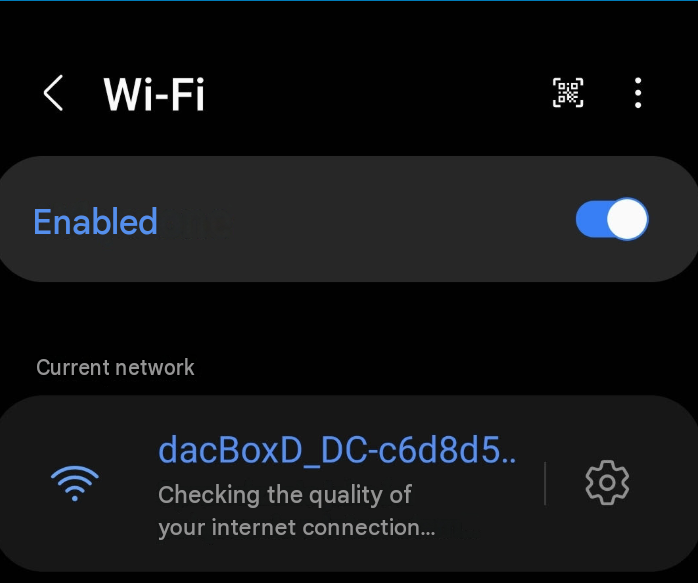
- On your smartphone, go to the Wi-Fi settings.
- Find a network with a name that matches your device (e.g. “dacBoxD_DC-xxxxxxxxxx”, where “xxxxxxxxxx” is the device’s serial number).
- Connect to this network (the network is not password-protected by default).
Launch the wBox app
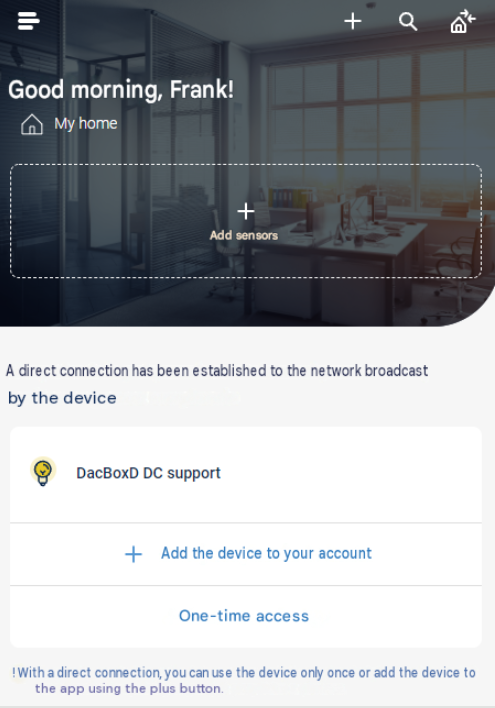
- The app will automatically detect your device.
- Click on the detected device to go to its screen.
- In the top right-hand corner of the screen is the settings icon (cog).
Connect the device to your home Wi-Fi network and secure the device’s access point (AP)
- In the ‘Connection’ tab, select your home Wi-Fi network from the list of available networks.
- Enter the password for your Wi-Fi network.
- Confirm the connection and wait for the device to connect to your network.
- Once you have connected to your home network, configure the device’s basic settings to suit your needs
- In the device settings, go to the “AP Service Connection” tab.
- Set a password for the device’s access point or disable it completely once you have connected to your home Wi-Fi network.
- Securing the access point protects against unauthorised access to the device.
- The settings vary depending on the type of device (e.g. for the thermoBox, these will be temperature settings; for the wLightBox, they will be lighting settings).
Set up remote access (optional)
- To access the device from outside your home network, enable the remote access option in the settings.
- Please note that, for remote access to work, the device must be connected to a network with internet access.
Forgotten your password?
- If you have forgotten the password for your device’s access point, you will need to reset it to its factory settings. The procedure varies depending on the device model; please check the detailed reset instructions available at: https://blebox.eu/wp-content/uploads/factoryReset_Manual_EN.pdf
- Once you have reset the device to its factory settings, you will need to carry out the initial setup again.